The manual of orbis-reframe 0.10.1, the newest release. What has changed since is in the development version on GitHub.
Media information
The Media information section, at the bottom of the settings sidebar's
Video tab, shows what's inside a clip's .insv file: how it was
recorded, by which camera, and in what format. It starts folded: click its
title to open it. It only shows information; nothing here can be changed.
It shows the file of the clip you selected on the video track, or of the clip under the playhead if none is selected. With no clip, it's empty. While a file from the Media tab is previewed (Previewing a file), it shows that file instead, and says Previewed file at its top right.
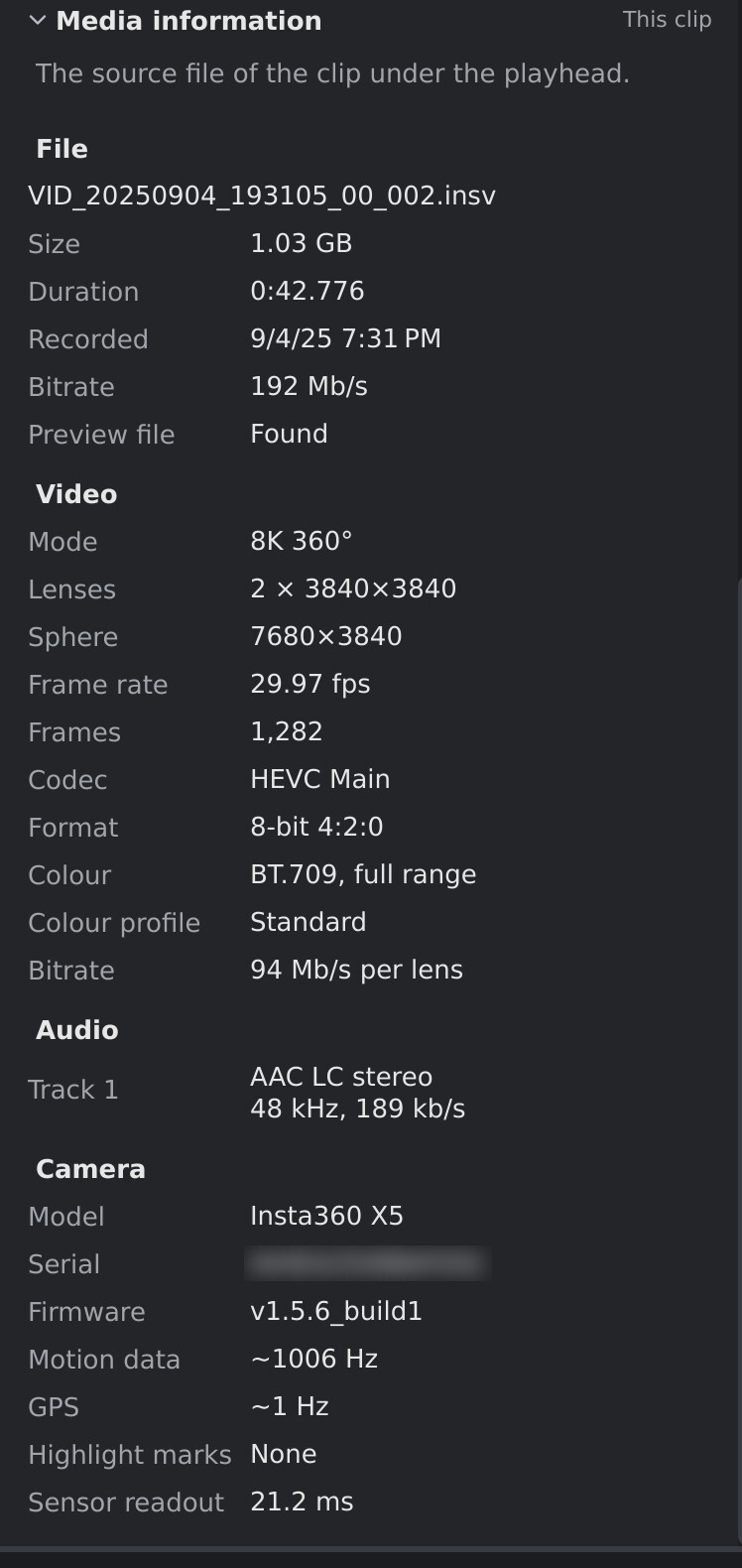
An 8K clip recorded on an X5. The camera's serial number is blurred here.
Hover over a value to see more about it, where there is more: the file's full path, or what a value means.
File
| Row | What it shows |
|---|---|
| (file name) | The name of the .insv file (for a ONE X2 5.7K clip, the front lens's VID_…_00_…). Hover over it for the full path. |
| Size | The file's size on disk. |
| Duration | How long the file is, in minutes, seconds and thousandths, before any trimming. For a recording in several files, the first file's; the whole recording's is under Recording. |
| Recorded | When the recording started, by the camera's clock: the time the camera showed. For a video that isn't from a 360 camera, the time the file says, in your computer's time zone. |
| Bitrate | How much data the file holds per second of video, sound included. Higher means more detail, and larger files. |
| Back lens file | Only for a clip whose back lens is in a file of its own (the Insta360 ONE X2's 5.7K clips): that file's name. Hover over it for the full path. The clip needs it, in the same folder. |
| Preview file | Whether the camera's low-resolution preview file (.lrv, the ONE X2's LRV_…_11_….insv, the Antigravity A1's PRX_….prx, or the DJI Avata 360's .LRF) is next to the .insv. orbis-reframe doesn't need it, so Not found is fine. |
| Re-written | Only for a file Insta360's software re-wrote with stretches cut out of it or its speed changed: ⚠ With cuts or a speed change. orbis-reframe lines such a file up with the camera's motion and GPS as if it were simply trimmed, so stabilization, highlight marks, and titles or gauges that use the GPS can be off in it. A file only trimmed at its start or end (…-trim.insv) is fine and shows no row. Use the camera's own file if you have it. |
Recording
Only for a recording the camera split over several files (the X5 starts a new file every 29 min 59 s; see The timeline), which is one clip.
| Row | What it shows |
|---|---|
| Length | How long the whole recording is, every file of it: the clip's length before trimming. |
| Files | Each file of the recording, in order, with where it plays in the clip, such as 29:59.798 – 37:25.376. A file that's gone says ⚠ not here: that stretch of the clip plays black and silent, and can't be exported (see Where the clips are). A file that isn't here is a gap between two files that are: a file of the recording that wasn't in the folder when you added it. Hover over a file for its full path. |
| Starts in | When the clip was added from a later file of the recording and the first file isn't in the folder: the first file's name, ⚠ Not here. The clip starts where the file you added does. Added from the first file, the whole recording comes in as a clip of its own. |
| May go on in | When the last file is as long as the camera makes one, and the next file isn't in the folder: that file's name. The files don't say whether the recording went on, so this is a guess: if you have the file, put it beside the others before adding the clip. |
Video
| Row | What it shows |
|---|---|
| Mode | The recording mode: 8K, 5.7K or 4K 360° on the X5, 8K, 6K or 4K on the X6, 5.7K on the ONE X2, 8K, 5.2K or 4K on the Antigravity A1. Read from the size of the lens pictures. The X5's 5.7K+ records pictures the same size as 5.7K, so it shows as 5.7K. Not shown for the DJI Avata 360, whose modes have no names here yet. |
| Lenses | The size of each of the two fisheye pictures, in pixels. |
| Sphere | The size of the whole 360° picture once the two are stitched together, as a flat world-map image. |
| Frame rate | Frames per second, such as 29.97, 59.94 or 119.88. |
| Slow motion | On a clip filmed in slow motion (the Antigravity A1's 4K Slow Motion): the rate the camera filmed at, such as Filmed at 100 fps. The file stores the frames at the frame rate above, so the clip plays that much slower than it happened; hover over the row for how much. |
| Timelapse | On a timelapse: how often the camera took a frame, such as A frame every 2.0 s; hover over the row for how long the recording took. |
| Frames | How many frames the recording has. |
| Codec | How the video is compressed: HEVC (H.265) or H.264, with its profile. |
| Format | Bits per colour (8 or 10) and how the colour is stored (4:2:0). |
| Colour | The colour standard (BT.709, BT.2020), the HDR format if the video is HDR (HLG or PQ), and whether the levels use the full or the limited range. |
| Colour profile | The colour profile the camera filmed in: Standard; a log profile such as I-Log (Insta360's); or an HDR mode, with its HDR format, such as Dolby Vision (HLG) (the Insta360 X6's). A log or HDR clip looks flat until you give it a LUT: the one the camera maker publishes for a log profile, HLG to Rec.709 for HLG (see LUTs). Shown when the camera writes it into the file, or when the video is HDR. |
| Bitrate | The video's data rate, for each of the two lens pictures. |
Audio
One row for each sound recording in the file: Track 1, and Track 2 for a clip with an external microphone (on the timeline, the External mic and Camera mic tracks; see Audio and noise reduction). Each row shows the format (usually AAC), the channels (mono or stereo), the sample rate and the data rate.
Camera
| Row | What it shows |
|---|---|
| Model | The camera that recorded the file, such as Insta360 X5. |
| Serial | The camera's serial number. Blur it out if you share a screenshot of this section. |
| Firmware | The camera's software version at the time of recording. |
| Motion data | How often the camera recorded its movement, which stabilization works from: about 1000 times a second on the X5. Orientation per frame on an X5 timelapse, which records which way the camera pointed at each frame instead. About 4000 on the DJI Avata 360, which records which way its camera pointed, not its gyroscope's readings. Not recorded means stabilization can't work for this clip. |
| GPS | Whether a GPS source, such as Insta360's GPS remote, recorded where you were: how often the position was updated (about once a second), or Not recorded. A second line says when the track covers only part of the recording, for example because the signal was lost, or no position fix if the GPS never found its position. The positions themselves aren't shown, so a screenshot of the section doesn't give away where you rode. An Antigravity A1 records its GPS too, and so does a DJI Avata 360 (about ten times a second); titles and gauges use it once the drone has moved (see Getting started). |
| Highlight marks | How many moments were marked while recording, or None. They show as yellow dots on the clip in the timeline (see The timeline). |
| Sensor readout | How long the camera's sensor takes to read one picture from top to bottom (the rolling shutter). orbis-reframe uses it to straighten the picture during fast movement. |
When it's useful
- Checking a clip before editing: the mode, frame rate and length, for example to find the 120 fps clips for slow motion.
- Reporting a problem: the mode, codec and firmware help pin down a bug. The diagnostics in Help ▸ About orbis-reframe describe your computer; this section describes the clip.
- If a clip won't open: the section shows Error with the reason, such as file not found.