The manual of orbis-reframe 0.10.1, the newest release. What has changed since is in the development version on GitHub.
Stabilization
The X5 records its own movement with a built-in gyroscope and
accelerometer, and stores it in every .insv file. (The X6 does too, but
its support is experimental: see
Getting started; stabilization may turn its picture
the wrong way. The ONE X2 does too, also experimentally. So does the
Antigravity A1, also experimentally, and its horizon comes from the drone's
flight controller: see On the Antigravity A1.
The DJI Avata 360 records which way its camera pointed instead, also
experimentally: see On the DJI Avata 360.)
orbis-reframe uses this
to steady the picture: it turns the 360° view against the camera's shake,
so the view holds still while the camera moves. It can also keep the
horizon level.
Stabilization is set in the Stabilization section (settings sidebar, Video tab), for each clip on its own (see Which clip it changes). It applies to playback, screenshots and the export alike. Nothing is re-rendered: changing it shows at once.
Demo video: plate blur and stabilization on a motorcycle ride (YouTube, 3:41). Recorded in October 2026, so the window may look a little different in your version.
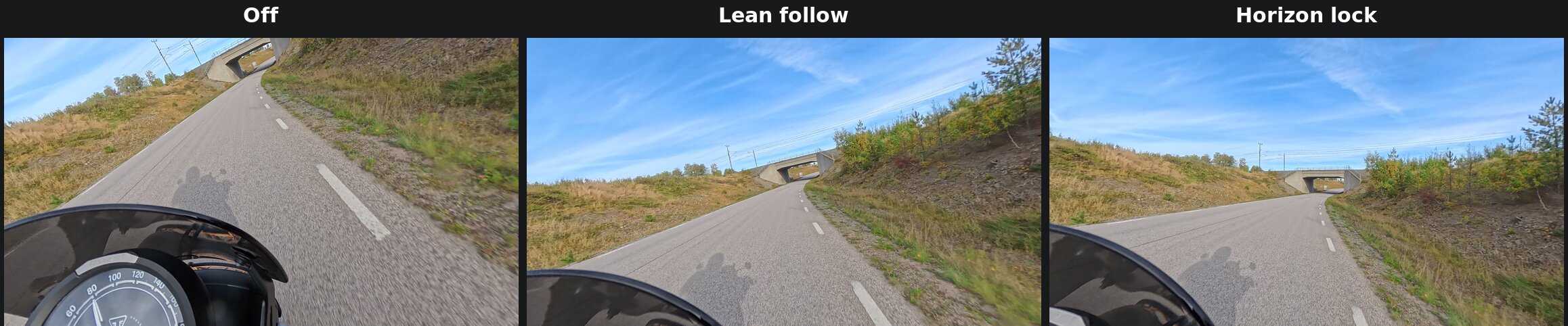
The same frame in a corner, with the same reframe keyframe, in each mode. Off: the view follows the camera, which leans with the bike and points down at the road. Lean follow: the view is steady and points ahead, and keeps the bike's lean into the corner. Horizon lock: the horizon is level, as if the bike were upright.
Choosing a mode
| Mode | What it does | Use it for |
|---|---|---|
| Off | No stabilization: the picture moves exactly as the camera did. | Footage from a tripod or other fixed mount, or to see the raw recording. |
| Lean follow | Removes shake, bumps and vibration, but keeps slow movements: a motorcycle's lean in a corner, going over a crest, turning your head on purpose. | Riding: motorcycle, bicycle, skiing, anything where leaning into a turn is part of the feel. |
| Horizon lock | Removes all of the camera's turning and tilting, and keeps the horizon level. The view still turns with the direction you travel in, smoothly. | Helmet, handheld, boat or drone footage, where you want a level horizon and the camera's lean isn't wanted. |
| Direction lock | Like Horizon lock, but the view doesn't turn with you: it keeps pointing one way, whichever way the camera turns. | Keeping a landmark, a view or the scenery on one side in the picture through bends and turns. |
| Custom | You set the smoothing and levelling yourself. | Fine-tuning, or special effects such as a "virtual tripod". |
The first clip of a new project starts with stabilization Off. For most riding footage, start with Lean follow; if the horizon should stay level, try Horizon lock.
Lean follow
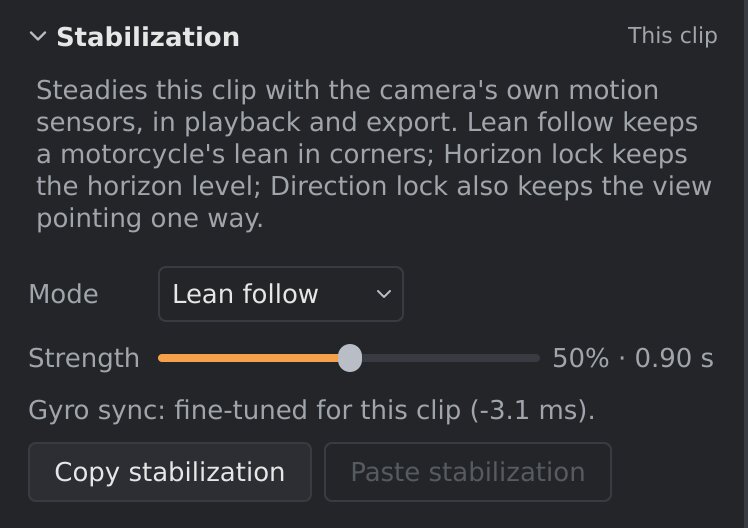
Strength sets how much movement counts as shake. To the left, the view follows the ride more closely and only fast vibration is removed. To the right, the view is steadier and slower movements are smoothed out too. The number after the slider is the smoothing time: movements faster than about this are removed.
The middle setting (50 %) suits most riding. Around it, a slow lean into a corner is kept. The top of the range is for very shaky footage, and starts to flatten the lean as well.
"Level" in Lean follow is the camera's average position over the clip. If the camera was mounted at a slight angle, the horizon still comes out level when the bike is upright.
Horizon lock
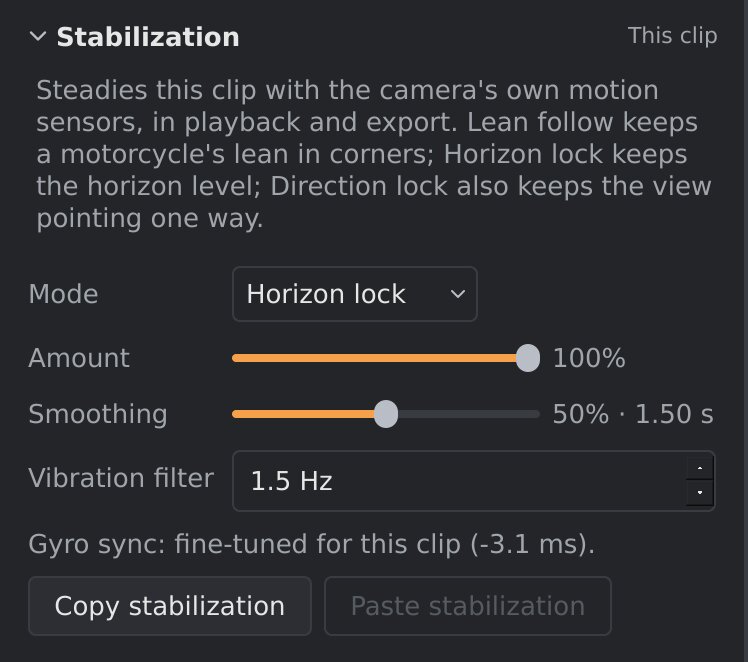
- Amount: how level to hold the horizon. At 100 % the virtual camera never tilts. Lower values let some of the camera's own (smoothed) tilt back in.
- Smoothing: how quickly the view turns when you change direction. To the left it follows turns closely. To the right the view is calmer, but lags behind in corners.
- Vibration filter: filters vibration out of the accelerometer before it
is used to find the horizon. The default (1.5 Hz) suits most footage. If
the horizon itself trembles on a vibrating mount, try a lower value;
0turns the filter off.
With Horizon lock on, a reframe keyframe with a roll of 0° always gives a level horizon, and its yaw is measured from the direction the camera faces, smoothed: on a forward-facing mount, the direction of travel.
Direction lock
Direction lock keeps the horizon level like Horizon lock, and also keeps the view pointing the same way: when the road bends, the view doesn't follow it, it stays on whatever it was looking at.
The direction it holds is the way the camera faced at the playhead when you chose Direction lock. To hold another direction, move the playhead to where the camera faces that way and click Lock to this direction. The line above the button says where the held direction was taken. Reframe keyframes still turn the view: their yaw is measured from the held direction.
Amount and Vibration filter work as in Horizon lock.
The camera has no compass, so the held direction comes from its gyroscope alone, which drifts slowly (except on the Antigravity A1 and the DJI Avata 360, see below). On an X5 the view turns by about 8 to 16° a minute, so on a long clip it slowly wanders off the direction you locked. Lock to a point near the part that matters, or split a long clip and lock each part on its own.
When you paste a Direction lock setting onto a clip from another file, it holds the way that clip's camera faces at its first frame.
Custom
Custom shows the stabilizer's own settings:
| Setting | What it does |
|---|---|
| Smooth yaw / pitch / roll | Smoothing time, in seconds, for turning left and right, tilting up and down, and tilting sideways. Short follows the camera closely; long holds the view still. |
| Level horizon | 0 keeps whatever sideways tilt is left after smoothing; 1 makes the horizon fully level. |
| Pitch offset / Roll offset | Tilts the result by a fixed angle, for example to correct a camera that was mounted crooked. |
| Auto-level | Level to mount's average: treats the camera's average position over the clip as level, so a crooked mount still gives a level horizon. Off: the camera body's own "up" is level. |
| Lock direction | Hold one direction: keeps the view pointing one way, however the camera turns, as Direction lock does. Ticking it holds the way the camera faced at the playhead; the line and the Lock to this direction button under it work as in Direction lock. Off: the view follows the camera's turns, smoothed by Smooth yaw. |
| Vibration filter | As in Horizon lock. |
Long smoothing times on all three axes (3 to 4 seconds) with Level horizon at 0 give a "virtual tripod": the view hardly moves at all, while slow changes in direction still come through.
On the Antigravity A1
A drone tilts to fly: nose down to speed up, sideways in a turn, and it speeds up, brakes and turns most of the time. A camera's accelerometer feels all of that as well as gravity, so it can't tell where "up" is in flight. The A1 records its flight controller's own idea of level with each clip, and orbis-reframe levels A1 clips by that instead: Horizon lock and Direction lock keep the real horizon level through the whole flight, and Lean follow's level and Custom's Level to mount's average come from it too. The Vibration filter works on the accelerometer, so it does nothing on A1 clips.
The flight controller also knows which way the drone points, without the slow drift of a gyroscope, so on A1 clips Direction lock holds its direction by that and doesn't wander off it, however long the flight.
On the DJI Avata 360
The Avata 360 doesn't store its gyroscope's readings. It stores which way its camera pointed, 4000 times a second, worked out by the drone itself from its sensors, and orbis-reframe stabilizes Avata clips from that. Horizon lock keeps the real horizon level through turns and banks, and Direction lock holds its direction without drifting off it. The Vibration filter works on the accelerometer, which the Avata's clips don't have, so it does nothing on them.
All of this is read from the .OSV itself: a clip copied without its
.LRF and .SRT files stabilizes the same.
Slow motion and timelapse
A slow-motion clip plays slower than it happened, and a timelapse much faster (see Slow motion and Timelapse in Media information). The camera records its movement in the time it filmed in, and orbis-reframe lines that up with the picture, so stabilization works on these clips as on any other. The Strength and Smoothing sliders keep their meaning in the time you watch: in a timelapse of a frame every 2 s, a 1 s smoothing evens out a minute of flight. The overlays' speed, lean and G-force follow the picture the same way.
An Insta360 X5 timelapse keeps no gyroscope record. Instead the camera stores which way it pointed while it took each frame, and orbis-reframe stabilizes from that: every mode works. Two differences from a normal clip:
- The camera's heading wanders by several degrees a minute (up stays true), and in a timelapse a minute passes in a second of video. Lean follow and Horizon lock follow the heading anyway, so they don't show it. Direction lock does: the view slowly turns away from the direction you chose.
- The clip records no acceleration, so a title's G-force shows
--(see Lean and G-force); the lean still shows.
Gyro sync says it couldn't fine-tune these clips (see Gyro sync): there is nothing to fine-tune, since the camera times each frame's orientation itself.
Which clip it changes
The setting belongs to one clip on the video track: the clip you selected, or the clip under the playhead if none is selected (see Selecting a clip). Each clip keeps its own setting, so a helmet clip can have Horizon lock while the clips around it have Lean follow. Where two clips with different settings meet, the picture changes over at the cut.
A clip you add takes the setting of the clip before it on the video track (the clip after it, if you add it at the start). When you split a clip, both halves keep its setting.
To give several clips the same setting:
- Select the clip whose setting you want, and click Copy stabilization.
- Select another clip, and click Paste stabilization. It gets the mode and all its settings.
The same is on the timeline: right-click a clip for Copy stabilization, Paste stabilization, and Paste stabilization to all clips, which gives every clip on the video track the copied setting.
The copied setting is kept until you close orbis-reframe. Edit ▸ Undo
(Ctrl+Z) takes back a change or a paste; pasting to all clips is undone
in one step.
Projects saved with orbis-reframe 0.1.0 had one setting for the whole project. When you open one, every clip gets that setting.
Gyro sync
To remove fast shake, the gyroscope's record has to line up with the picture to about a millisecond. The camera's own timing isn't always that exact, so orbis-reframe measures it for each clip from the video itself. This runs in the background while playback is paused, and the result is saved in the project, so it's only done once per clip. (A project saved by version 0.8 or earlier is measured once more: the camera's timing now allows for each frame's exposure time, which the older measurement didn't.)
The Stabilization section shows the state for the clip under the playhead:
| Message | Meaning |
|---|---|
| Gyro sync: measuring this clip… | The measurement is running. Stabilization already works, with the camera's timing. |
| Gyro sync: fine-tuned for this clip (… ms). | Done: the gyroscope is lined up with the picture. |
| Gyro sync: couldn't fine-tune this clip (…); using the camera's timing. | The measurement didn't succeed; the brackets say why (below). Stabilization still works, but may leave a little more fast shake. |
The reasons a measurement gives:
- the file can't be read, not a 360 camera file, this kind of 360 clip isn't supported: as for the seam (see Stitching).
- the file has no usable gyroscope data: the camera didn't record motion data, or it can't be used, or (an X5 timelapse) it recorded which way it pointed at each frame instead, which needs no fine-tuning.
- too little detail or movement in the picture: the measurement lines the picture's movement up with the gyroscope's, and found too little of either (a plain or dark scene, or a very short or very still clip).
The measurement pauses while the video plays, and continues when you pause.
A flat video on the video track has no motion data, so it can't be stabilized: with one selected, the section says so.
What stabilization can't fix
Stabilization turns the view; it can't move it. So it removes the camera's turning, tilting and vibration, but not everything that looks like shake:
- The camera moving through space. A camera on a long stick or a bouncing mount also moves up, down and sideways. Far away things (the road ahead, the horizon) look steady after stabilization, but things close to the camera, such as the bike itself, can still seem to sway.
- Motion blur. If the shutter was open while the camera shook, the picture itself is smeared. A shorter shutter time when filming (more light, or setting the shutter on the camera) is the only cure.
- Very fast vibration. A mount that vibrates faster than about half the frame rate can leave a jittery look, because each frame catches the vibration at a different moment. A higher frame rate when filming helps.
Whenever stabilization is on for a clip, orbis-reframe also corrects the rolling shutter: the slight bending of the picture during fast movement, because the camera's sensor reads the picture line by line.
Changing stabilization after a privacy-blur scan. With stabilization on, the stitched picture is slightly different. A privacy-blur scan made with the clip's stabilization the other way (on or off) may then sit a little off the number plates, and orbis-reframe warns you before an export or screenshot. See Privacy blur.